On this page8 sections
- 01Start from a real photo, not a prompt
- 02What are Amazon’s product image requirements?
- 03Make a compliant main image in one command
- 04Add AI backgrounds without changing the product
- 05Keep lighting consistent across your catalog
- 06The tools that work
- 07Honest product photos: what you can and cannot change
- 08FAQ
AI product photography works best when it starts from a real photo of the real product. Shoot the item once in good light, cut it out, place it on pure white for your main marketplace image, and let AI build lifestyle scenes around it for the rest. The product’s shape, color, label and size stay exactly as they are.
Generating the product itself from a text prompt is the mistake to avoid. Image models redraw labels, change proportions and invent details, and marketplaces require images that accurately show what you sell.
- Start from a real photo. Let AI change the scene around your product, never the product.
- Amazon’s main image needs a pure white background (RGB 255, 255, 255), with the product filling 85% or more of the frame.
- Google Shopping requires AI-generated images to carry metadata that says so, and bans promotional text, borders and watermarks.
- Keep your catalog consistent with the same angles, the same light direction and a written house style.
- One ImageMagick command makes a compliant white-background image, and a short script checks it before you upload.
Start from a real photo, not a prompt
Your photo is the evidence of what the customer will receive, so it has to be good enough that the product itself never needs fixing. A phone, a window and a sheet of white card are enough:
Soft, even light. Shoot beside a window on an overcast day, and bounce light into the shadows with white card.
A steady camera. Use a tripod, and turn off beauty or “enhance” modes.
A plain background that contrasts with the product, so cutouts come out clean.
Every angle a shopper would ask about, plus close-ups of details and one shot in a hand for scale.
True color. Compare the photo with the real item, and correct the color before any AI step.
What are Amazon’s product image requirements?
Every marketplace sets its own rules, and the main image, the one shoppers see in search results, gets the strictest ones. This is what the official pages say as of September 2026.
| Rule | Amazon | Google Shopping | eBay |
|---|---|---|---|
| Background | Pure white (RGB 255, 255, 255) in most cases | Minimal or no staging | No added borders |
| Size | 500 to 10,000 pixels on the longest side, and over 1,000 pixels per side for zoom | At least 500 x 500 pixels, with 1500 x 1500 or more recommended | At least 500 pixels on the longest side |
| Framing | The product fills 85% or more of the frame | Show the entire product | Photos must accurately represent the item |
| Other rules | JPEG, TIFF, PNG or non-animated GIF; clear, with no jagged edges | No placeholders, promotional text, prices, watermarks or borders; one image per variant | No stock photos of used, damaged or defective items; no added text or watermarks |
Amazon’s full Product image guide in Seller Central has more detail.
Google is the most explicit about AI. Merchant Center says every image created with generative AI must carry metadata that says so, such as the IPTC DigitalSourceType value TrainedAlgorithmicMedia, and you must not remove embedded metadata. Some export settings strip it, so check your final files.
Make a compliant main image in one command
Start from a cutout: a transparent PNG from any background remover. This ImageMagick command trims empty space, scales the product to 1,700 pixels on its longest side, and centers it on a 2,000 by 2,000 pure white square. Since 1,700 is 85% of 2,000, the product fills exactly the share Amazon asks for.
magick cutout.png -trim +repage -resize 1700x1700 \
  -background white -gravity center -extent 2000x2000 \
  -alpha remove -alpha off -quality 92 main.jpg
Then check the result before you upload. This short Python script uses Pillow to test three rules you can measure: size, a pure white edge and fill.
import sys
from PIL import Image

path = sys.argv[1]
img = Image.open(path).convert("RGB")
w, h = img.size
px = img.load()

# 1. Size: Amazon prefers more than 1,000 px on each side, so shoppers can zoom
print(f"size: {w} x {h} px", "OK" if min(w, h) > 1000 else "SMALL (no zoom)")

# 2. Background: every pixel along the outer edge should be pure white (255, 255, 255)
edge = [px[x, y] for x in range(w) for y in (0, h - 1)] + \
       [px[x, y] for y in range(h) for x in (0, w - 1)]
off = sum(1 for p in edge if p != (255, 255, 255))
print(f"edge pixels not pure white: {off}", "OK" if off == 0 else "FIX")

# 3. Fill: how far the product stretches across the frame, on its longest side
box = Image.eval(img.convert("L"), lambda v: 255 if v < 240 else 0).getbbox()
if box:
    fill = max((box[2] - box[0]) / w, (box[3] - box[1]) / h)
    print(f"product spans {fill:.0%} of the frame", "OK" if fill >= 0.85 else "TOO SMALL")
Real output for that image, and for a test image with a small product on an off-white background:
$ python3 check_main_image.py main.jpg
size: 2000 x 2000 px OK
edge pixels not pure white: 0 OK
product spans 85% of the frame OK

$ python3 check_main_image.py bad-main.jpg
size: 900 x 900 px SMALL (no zoom)
edge pixels not pure white: 3600 FIX
product spans 31% of the frame TOO SMALL
We tested both with ImageMagick 7.1.2, and with Pillow 9.5 and 12.2. The fill check is a rough guide: a white product on a white background can fool it, so trust your eyes too.
Add AI backgrounds without changing the product
Lifestyle images, which show the product in use or in a setting, are where AI earns its keep. There are two ways to make them.
Composite: the safest method
Ask the model for an empty scene with space left for your product, then place your cutout on top and add a soft shadow. Every product pixel is still your photo.
Edit around the product: faster, but check it
Give the model your photo as a reference and ask for a new setting. The model redraws the product, so compare the label, the proportions and the color with the original. A masked edit, where you mark the area to change, keeps the product safer, though some models treat the mask only as a guide.
Either way, make the scene’s light come from the same side as the light in your photo. Mismatched shadows give a fake away fastest.
A square lifestyle product photo background with no product in it: a pale travertine bathroom shelf beside a window, a folded linen towel at the far left edge.
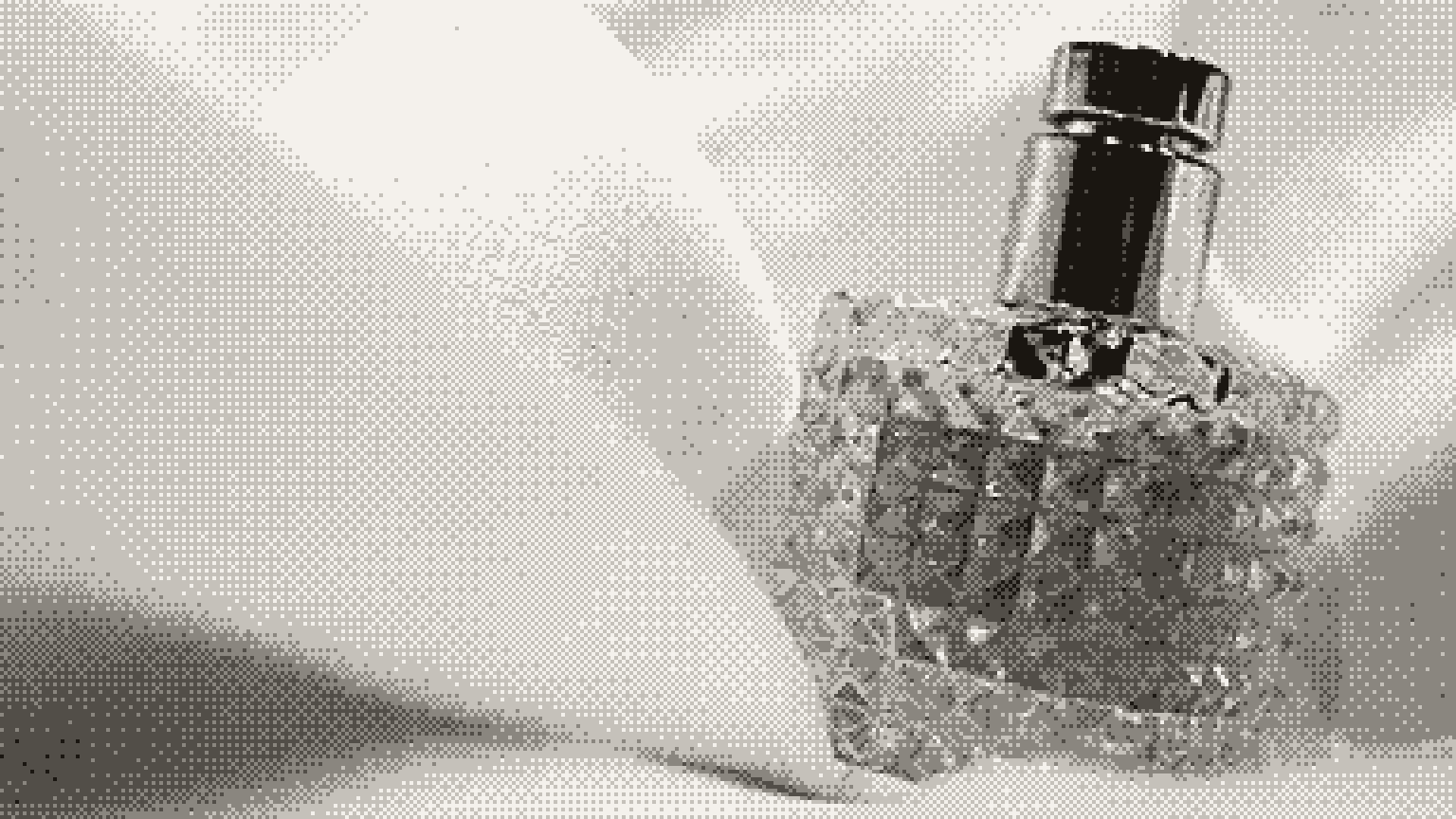
Soft morning light from the left, with gentle shadows falling to the right. Leave the center of the shelf empty for a perfume bottle about 12 cm tall, seen at eye level.
Photographic, neutral colors, no text.
Place the product from the attached photo on a pale travertine bathroom shelf in soft morning light from the left.
Do not change the product in any way: keep its shape, proportions, colors, label text and cap exactly as in the photo.
Add a soft, realistic contact shadow under it. No other products, no text.
To choose a model for the job, see the best AI image generators of 2026. For the camera and light words that make a scene look photographed, see how to write AI image prompts that look professional.
Keep lighting consistent across your catalog
A catalog looks professional when every product seems to come from the same shoot. Write the rules down once and paste them into every scene prompt.
House style for all product scenes: key light from the left at about 45 degrees, soft and diffused; gentle shadows falling right; warm neutral palette of cream, sand and pale wood; eye-level camera, square crop, product centered with generous space around it; no text, no people, no competing products.
Pair it with a fixed shot list, such as front, three-quarter view, back, a detail and one scene, so shoppers comparing two products see the same angles.
The tools that work
What each tool does, as of September 2026:
Background removal, AI lifestyle scenes, AI shadows, batch editing and an image API. Its Recolor tool changes a product’s color, so use it only for variants you really sell, in their true colors.
Media generation in the Shopify admin swaps a background for a solid color or transparency, changes backgrounds or lighting from a prompt, and extends images, on the Basic, Grow, Advanced and Plus plans. Output is about 1 megapixel by default, so check the size before you rely on zoom.
Google’s image model accepts up to 10 object images in one request, which helps it keep a product’s details when it builds a scene. Every image it makes carries an invisible SynthID watermark.
OpenAI’s image API takes a mask that marks the area to replace, such as the background. OpenAI says the model uses the mask as guidance and may not follow its exact shape, so compare the product with your original.
Honest product photos: what you can and cannot change
The test is simple: the photo must match what arrives in the box.
- The background, setting and props, if the listing says what is included
- Light, shadows and reflections, as long as colors stay true
- Dust, lint and fingerprints on a new item
- Cropping, straightening and white balance
- The product’s color, shape, size, texture or finish
- Label text, logos, certification marks or included parts
- Scale, such as a smaller hand or room that makes the product look bigger
- Wear, scratches or defects on a used item
- A variant, color or feature you do not actually sell
This is not just good manners. In the US, the FTC says advertising must be truthful and not deceptive, and it judges an ad by its “words, phrases, and pictures” together. An edited photo that oversells a product can mislead as much as a false claim. Google and eBay both require photos that accurately show the item.
For more ways a small shop can use AI safely, see 15 jobs a small business can hand to AI.
FAQ
Can I use AI product photos on Amazon?
Use a real photo of the product for the main image, on pure white, with the product filling 85% of the frame. AI scenes fit best in your other images, as long as the product in them is accurate.
Do I have to label AI-generated product images?
On Google Shopping, yes: images created with generative AI must carry metadata that says so, such as the IPTC TrainedAlgorithmicMedia value. Other marketplaces set their own rules, so check each one where you sell.
What size should product photos be?
Amazon asks for 500 to 10,000 pixels on the longest side and prefers over 1,000 pixels per side for zoom. Google Shopping recommends 1500 x 1500 or more. A 2,000 by 2,000 pixel square meets all of these.
- Start with a real photo, and let AI change only the scene.
- Put your main image on pure white, with the product filling 85% of the frame.
- Composite so the product pixels stay your own, and check any masked edit against the original.
- If an edit changes what arrives in the box, do not make it.
Read next: AI for marketing, a practical playbook for small teams.
- 6 tips for taking product photos in 2025, Sell on Amazon, December 2024
- Image link (image_link): Merchant Center product data specification, Google Merchant Center Help, September 2026
- Picture policy, eBay, September 2026
- Advertising FAQs: a guide for small business, Federal Trade Commission, updated January 2025
- Photoroom, Photoroom, September 2026
- Shopify Magic media generation, Shopify Help Center, September 2026
- Image generation with Nano Banana, Gemini API docs, Google, September 2026
- Image generation, OpenAI API docs, September 2026