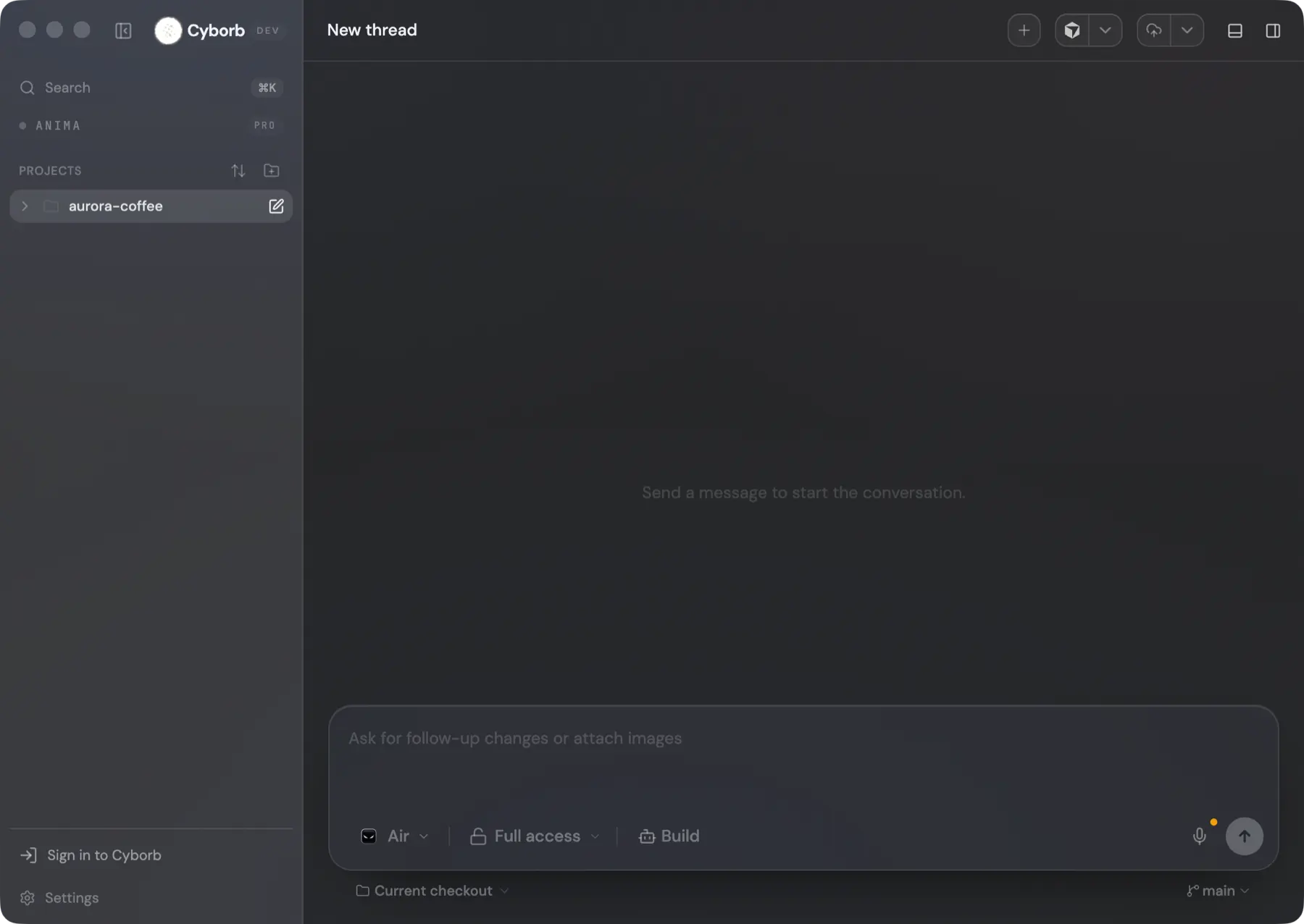
It ships with everything
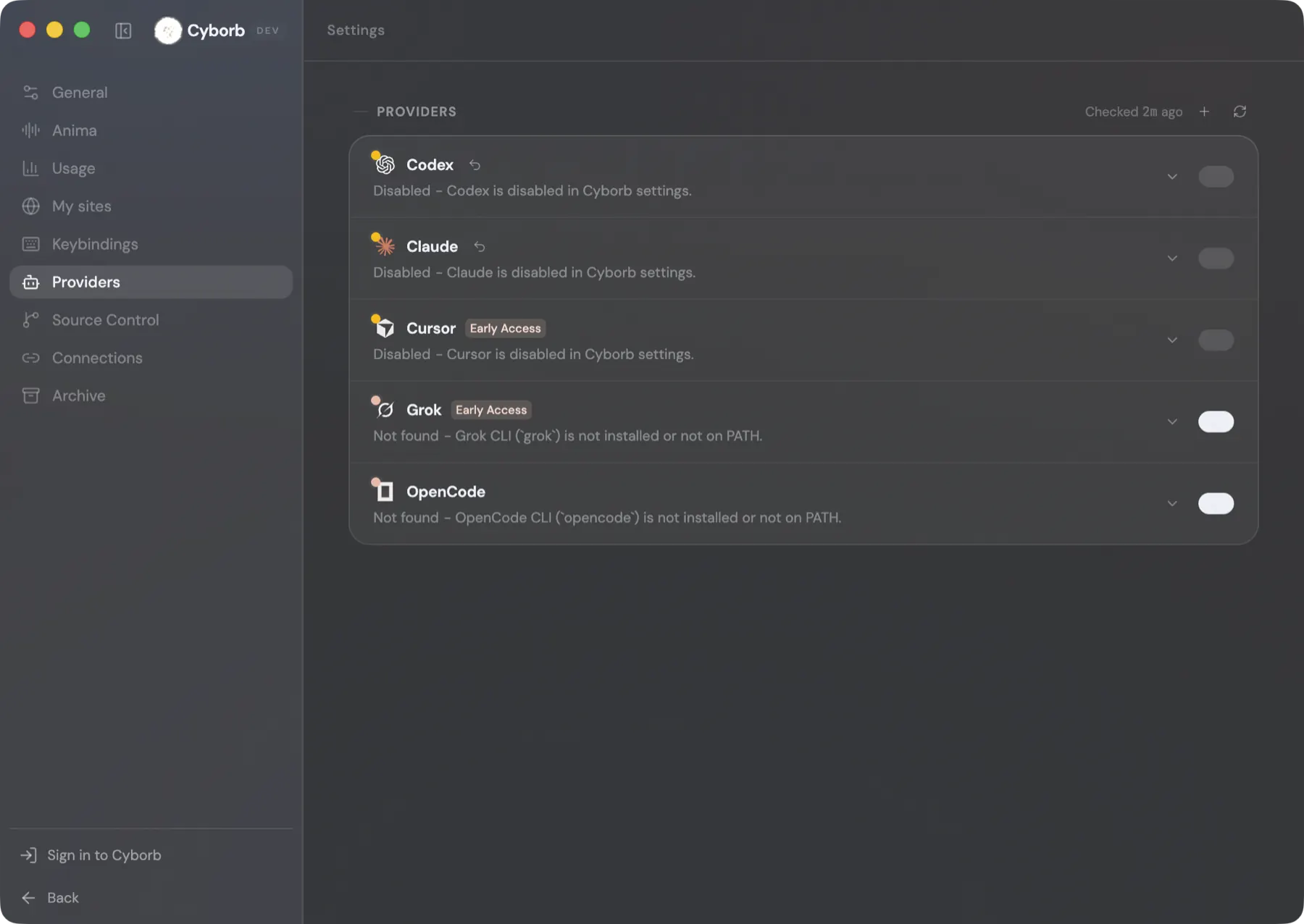
The agent is inside the app. No keys to paste, nothing to install alongside it, nothing to configure before the first useful thing happens.
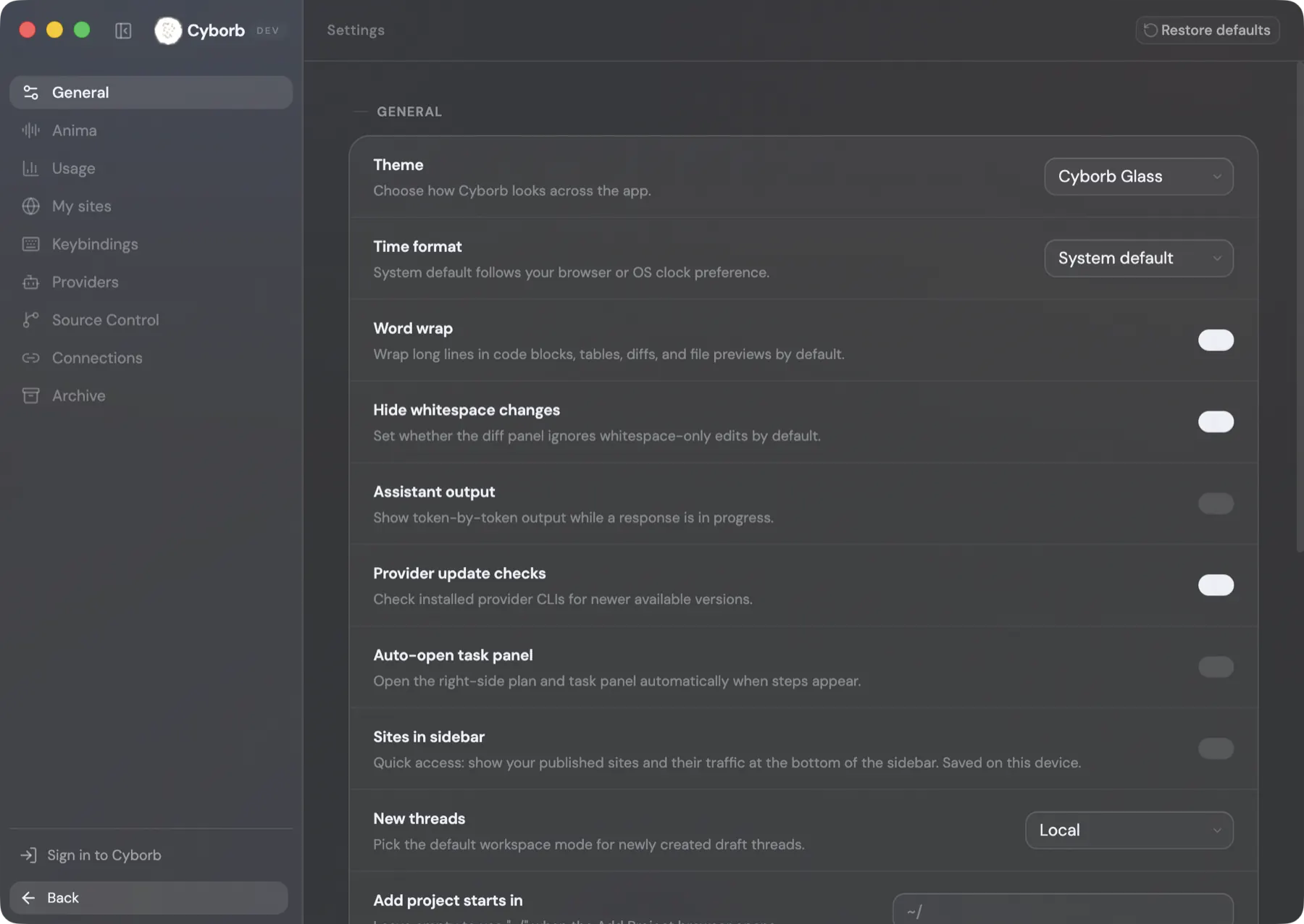
Tuned to how you work
Theme, diffs, streaming output, where new threads start. Set once and it follows you across the desktop app, the terminal and the web.
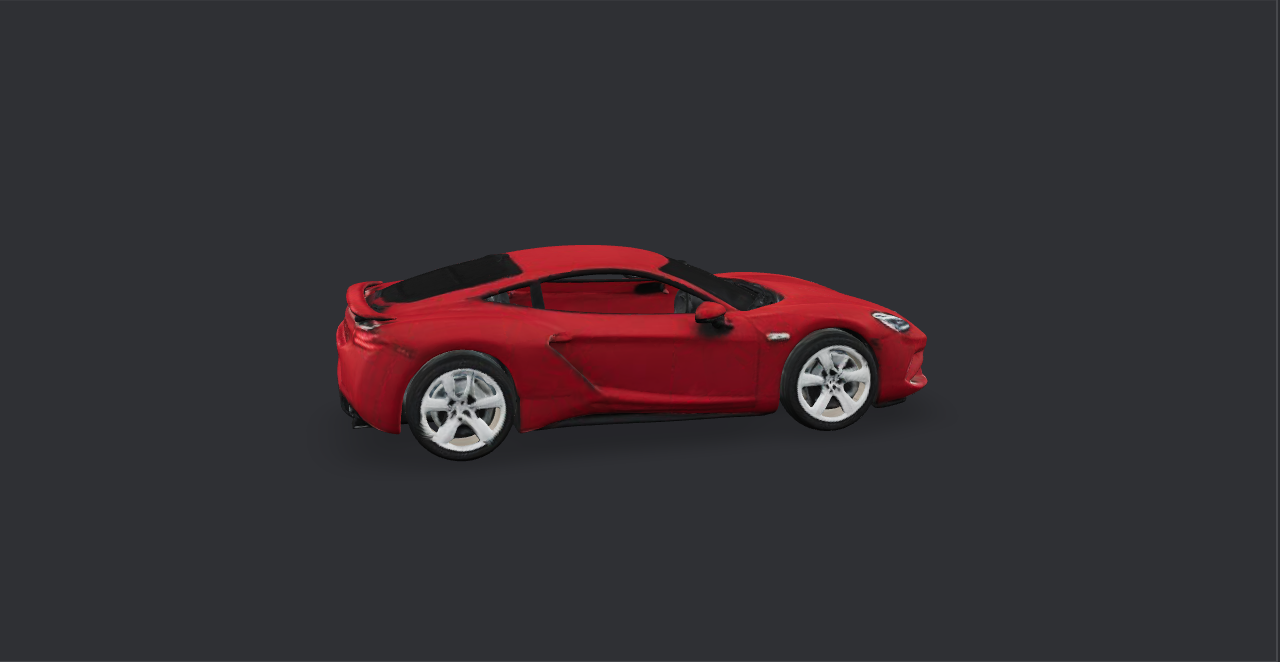
It makes what the build needs
Images, 3D models, music, video and motion graphics, generated in the flow and saved straight into your project. No second tool, no export step.
One account, two surfaces
The desktop app and the CLI run the same agent on the same account. Sign in once and your plan, usage and settings follow you to both.

Cyborb desktop
Your projects on the left, the conversation in the middle, and the controls that matter (which model, how much access, which branch) on the composer itself.
Download for macOSCyborb CLI
The same agent in your terminal, signed in with the same account. The desktop app already bundles it, so this is only for a machine where you want the command line without the app.
Read the install docsAll platforms
macOS
DownloadSigned and notarized by Apple. On first open, macOS asks once to confirm that you want to open an app downloaded from the internet.
How to open
- Open the downloaded disk image and drag Cyborb to Applications.
- Double-click Cyborb and click Open on the confirmation.
If macOS says the app cannot be checked for malicious software, your Mac is offline. Connect it once so the notarization ticket can be verified, then open the app again.
Windows
DownloadUnsigned beta build: Windows may show a blue SmartScreen warning on first run. If it does, choose More info, then Run anyway.
How to open
- Open the downloaded installer from your Downloads folder.
- On the blue "Windows protected your PC" screen, click "More info".
- Click "Run anyway" to continue the install.
The warning means the installer does not yet carry a code-signing certificate, not that the file is damaged. Every release publishes the file size and a SHA-512 checksum for this exact installer at updates.cyborb.ai/latest.yml.
Linux
DownloadUnsigned beta build: make the AppImage executable before opening it.
How to open
- In a terminal:
chmod +x ~/Downloads/Cyborb-*.AppImage - Then run it:
~/Downloads/Cyborb-*.AppImage - Or in your file manager: right-click > Properties > Permissions > Allow executing as program.
Public betaSome features may not work correctly yet.